
Changelog
Follow up on the latest improvements and updates.
RSS
improved
Lesson Editor
We've completely rewritten our lesson editor from the ground up. Our goal was to provide a cleaner and more efficient experience for our content creators with more useful content types for instructional content.
Appearance
We've removed the fixed toolbars in favor of floating toolbars and right-click menus. This will reduce scrolling and allow creators to use their keyboard.
Quick Insert
Creators can use the backslash
/
key to show a menu of available content types to insert.
Content Types
There are many types of content that you can insert into lessons, from bullet points to images.
Here's a full list of content types, split into the same categories you'll find in our block menu (which can be opened with
/
).Basic blocks
- Text: Just your regular old plain text!
- Heading 1: The largest heading, can be easily added with shortcut/h1.
- Heading 2: The medium-sized heading, can be easily added with shortcut/h2.
- Heading 3: The smallest heading, can be easily added with shortcut/h3.
- Table: Creates a simple set of columns and rows.
- Bulleted list: Bullets. Shortcut-+space.
- Numbered list: Indents your list and automatically generates the next number.
- Quote: Creates larger text to break quotes out from the rest of your document.
- Divider: Creates a thin gray line to break up text. Shortcut---+enter.
Media
There are several types of media you can add, view, and play (audio/video) right in a lesson.
- Image: Upload images or add images on your lesson.
- Video: Upload your own file or embed from YouTube, Vimeo, etc.
- Block Audio: Upload your own recording or embed from a website.
- File: Upload any sort of file to a lesson to store it exactly where you want it.
- Web Bookmark: Add a clickable link preview of a URL to your page.
Lesson specific blocks
- Quick Start: Give a short overview or summary.
- Notice: Point out something important.
- Info: Provide an explanation.
- Tip: Give a helpful tip.
- Mistake: Point out a common error.
- Learn More: Connect to further lessons.
- Examples: Show usage in context.
- Conversation: Show a dialog.
- Verb Conjugation: Show a verb conjugation table.
Inline-options
The content menu includes a few options that aren't technically blocks. Instead, they're
/
commands that will add several other types of content to your lesson:- Reveal: Give learners a chance to guess and check.
- Link to page: Creates a link to another lesson or vocabulary set. Shortcut@ Content Name
- Inline Audio: Insert a small audio player next to text.
- Emoji: Brings up the emoji picker. Shortcut:emoji name:
Style your Content
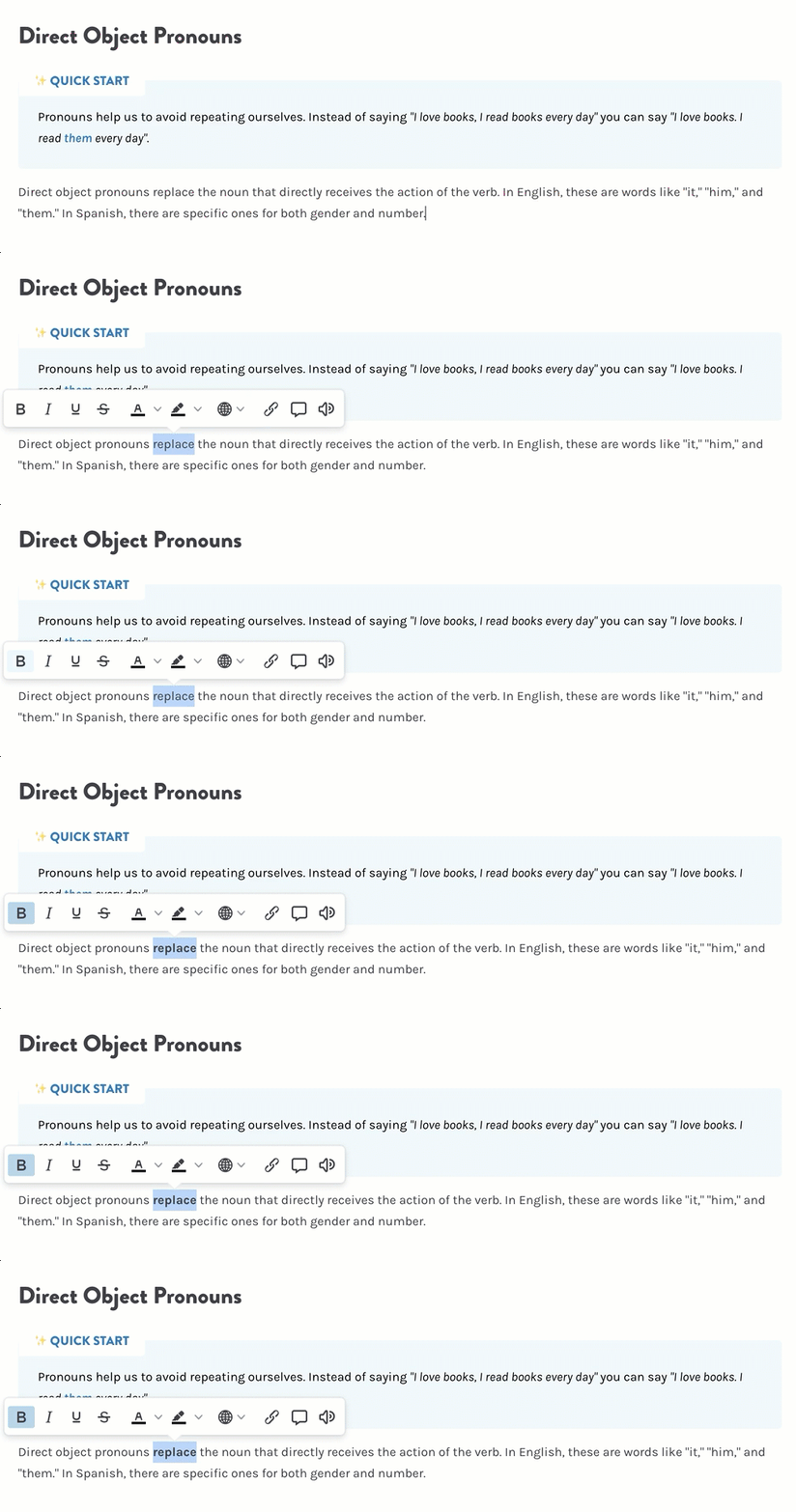
Lingco's lesson editor is equipped with all the text styling features you've come to expect from any word processor — with a few more added in. Highlight any text to see the editing menu:
Inline Formatting
There are also multiple options that can be applied
- Bold,Italics,Underline,Strikethrough
- Text ColorandBackground Color
- Language: Make text accessible to screen readers by setting the language of the text.
- Link
- Tooltip: Insert text to appear on hover.
- Audio: Insert an audio file to play when the learner clicks on the text.
Right-click Actions
- Transform: Convert block into another type of block (like a bullet into a checkbox, or some plain text into a heading).
- Translate: Switch between languages.
- Capitalization: Switch between UPPERCASE, Title Case, and lowercase
- Generate Audio: Create synthesized audio. List shows available voices and regions.
Markdown & shortcuts
Lingco supports many Markdown shortcuts along with traditional text editor shortcuts.
While typing:
- Type ** on either side of your text to bold. Keyboard: ctrl+b.
- Type * on either side of your text to italicize. Keyboard: ctrl+i.
- Type ~ on either side of your text to strikethrough.
At the beginning of any line of text, try these shortcuts:
- Type *,-, or+followed byspaceto create a bulleted list.
- Type 1.,a., ori.followed by space to create a numbered list.
- Type #followed byspaceto create an H1 heading.
- Type ##followed byspaceto create an H2 sub-heading.
- Type ###followed byspaceto create an H3 sub-heading.
- Type "followed byspaceto create a quote block.
Advanced Keyboard Shortcuts
- Source Code Editor: ctrl+shift+s
- Toggle Visual Blocks: ctrl+shift+v
- Exportable HTML & CSS: ctrl+shift+c
(
Ctrl
on Windows or Command
on Mac)improved
Grading
Audio Comments
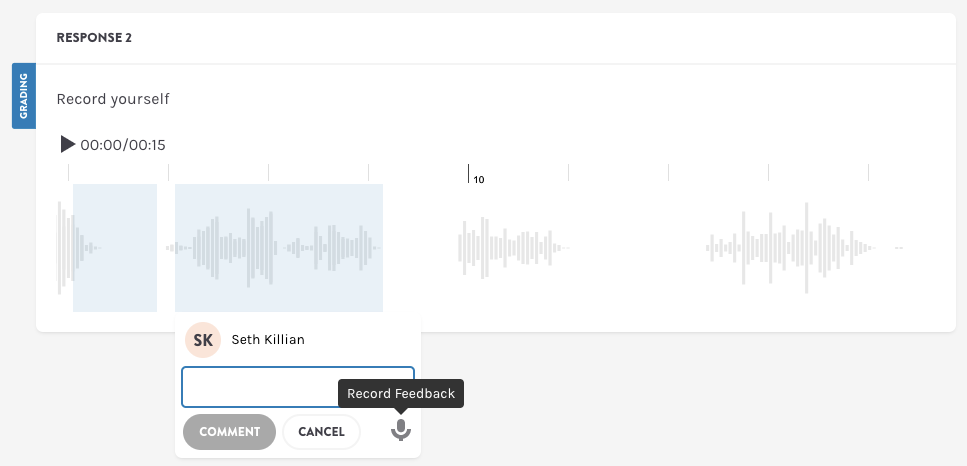
In addition to leaving written inline comments on student recordings, you can also record yourself by clicking on the microphone icon. We hope that this will be an easy way to give students better feedback, especially with things like pronunciation!
new
Grading
Audio Annotations 💬
A major component of learning a language is speaking. Previously, giving feedback on specific parts of a recording has been difficult.
Our goal with this new feature is to allow instructors to easily comment on portions of student's recording when grading.
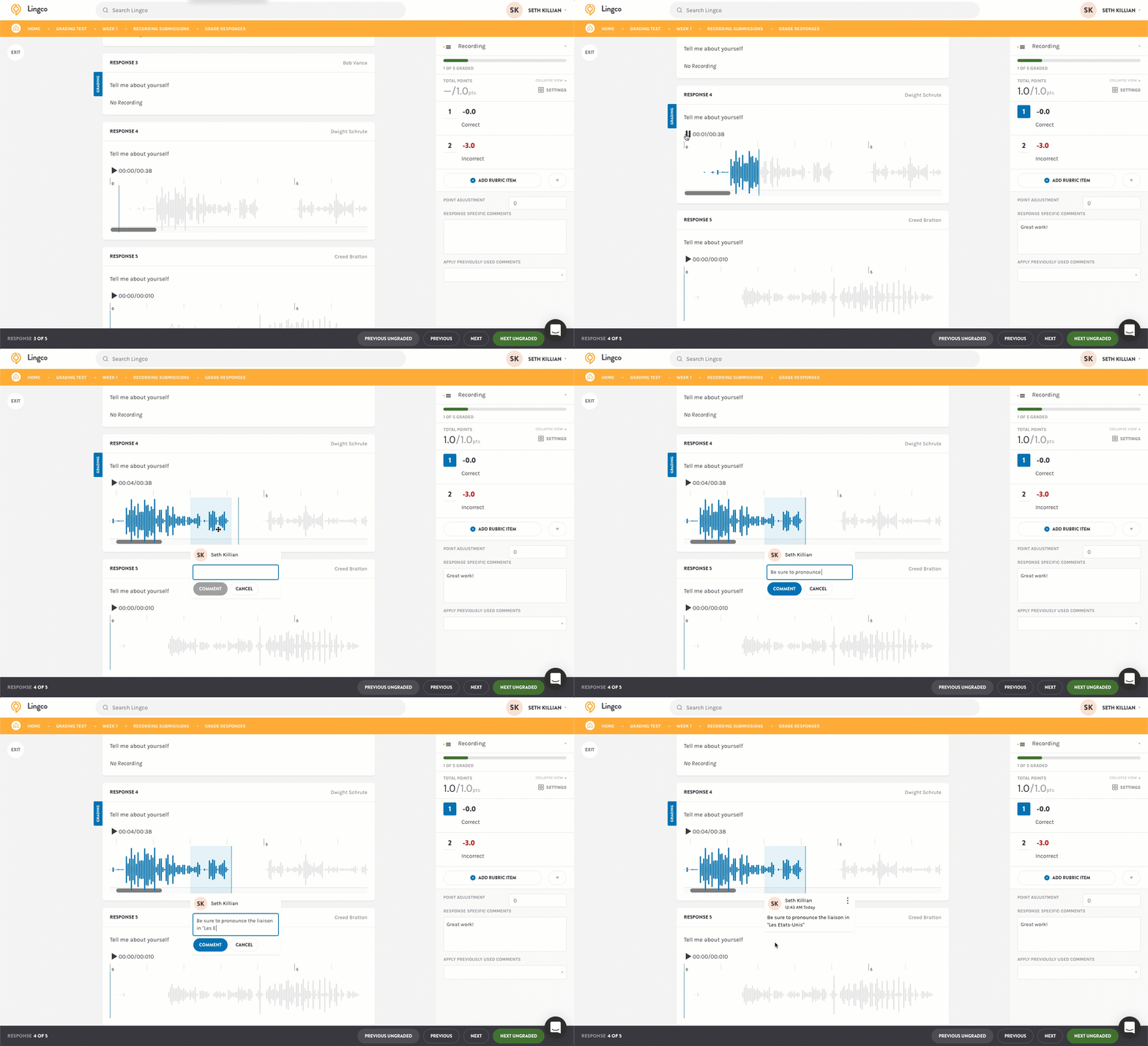
When grading, student's recordings will now appear as a waveform. To comment, highlight a region with your cursor and a comment box will appear. You can double click on the region to listen to it or drag the edges to resize it.
Once you add an annotation, the student's recording will be locked in and their view will show the waveform and annotations.
We hope that this update provides value and look forward to your feedback on improving the experience!